Volunteer planning step by step
From an empty event to a complete assignment schedule: this guide shows you how to organise your event with Clubo, invite volunteers and keep track of everything.
How it works
Three steps to your assignment schedule
Create your event
Set up your event with date, contact details and logo — done in just a few minutes.
Plan assignments
Structure the event into divisions, tasks and shifts, and define how many volunteers are needed where.
Publish & take bookings
Share the link to the sign-up page — volunteers book their assignments themselves and automatically receive all the details by email.
The guide in detail
Everything you need to know
Understanding the structure
Volunteer planning follows a simple structure: an event consists of divisions (areas such as catering or technology). Each division contains tasks — concrete jobs such as the barbecue stand or the cash desk. For each task you define shifts with a date and time, and these produce the individual assignments that volunteers can book.
- Event → divisions → tasks → shifts → assignments
- Each assignment is a bookable slot for one person
- The structure can be adjusted and extended at any time
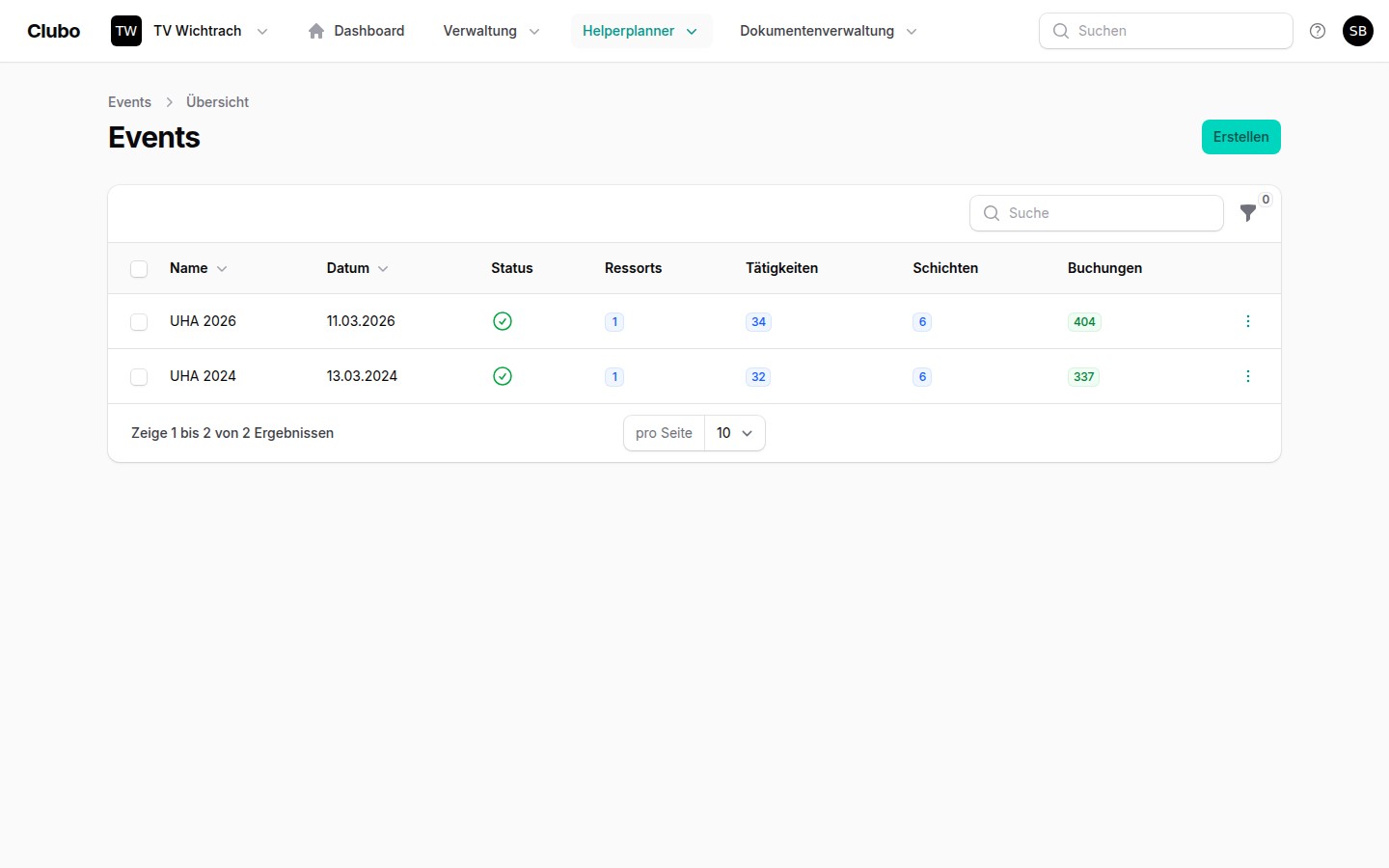
Creating an event
Create your event in the Planner under "Events". In addition to the title and date, you enter the contact person for enquiries, optionally upload an event logo and assign a descriptive web address for the public sign-up page. The event remains invisible until you actively publish it — so you can plan at your own pace.
- Enter title, date and contact details
- Upload your own event logo for the public page
- Control visibility: publish only when everything is ready
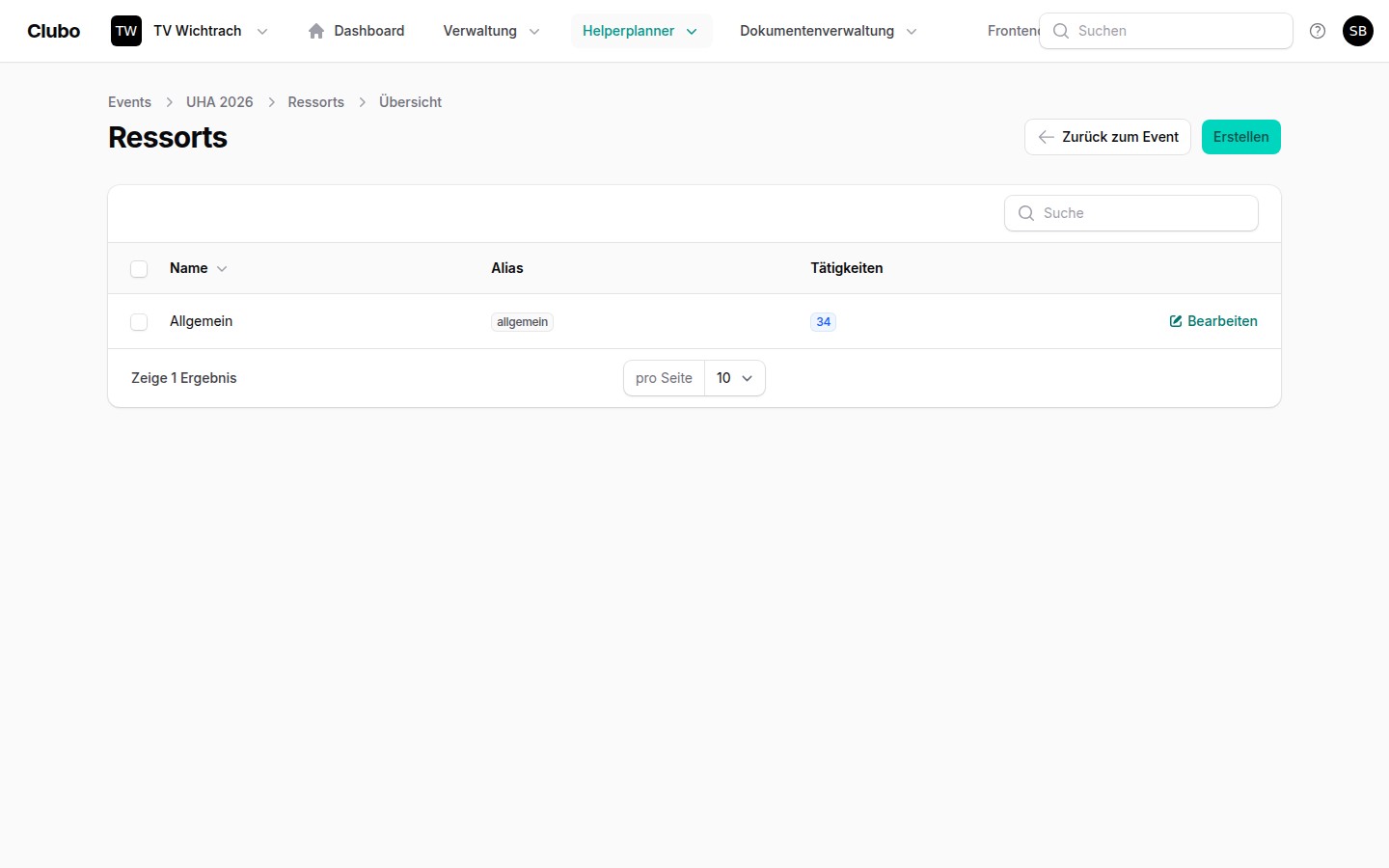
Setting up divisions
Structure your event into areas — for example catering, technology, setup and teardown, or traffic. Divisions keep large events manageable and make it easier for everyone to quickly find the right area. You can assign a responsible person to each division.
- Create areas such as catering, technology or setup
- Define a responsible person per division
- Filter the sign-up page by division
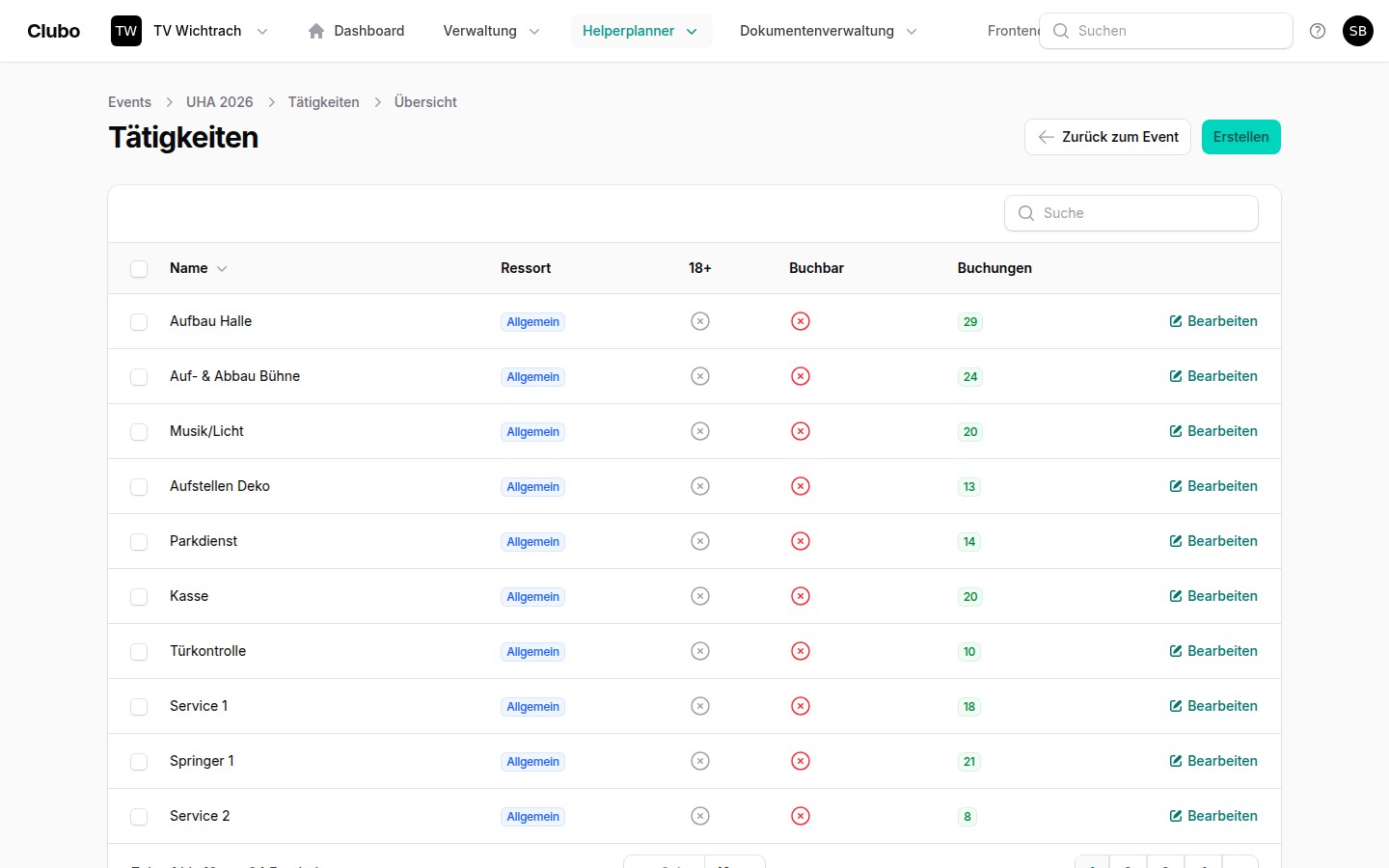
Defining tasks
Within the divisions you create the specific tasks: what needs to be done, what should volunteers bring along, and how much is the assignment worth? With a description and any requirements, volunteers know exactly what to expect before they book.
- Add a description and requirements to each task
- Set an assignment value, for example for volunteer duty or remuneration
- Sort the order freely
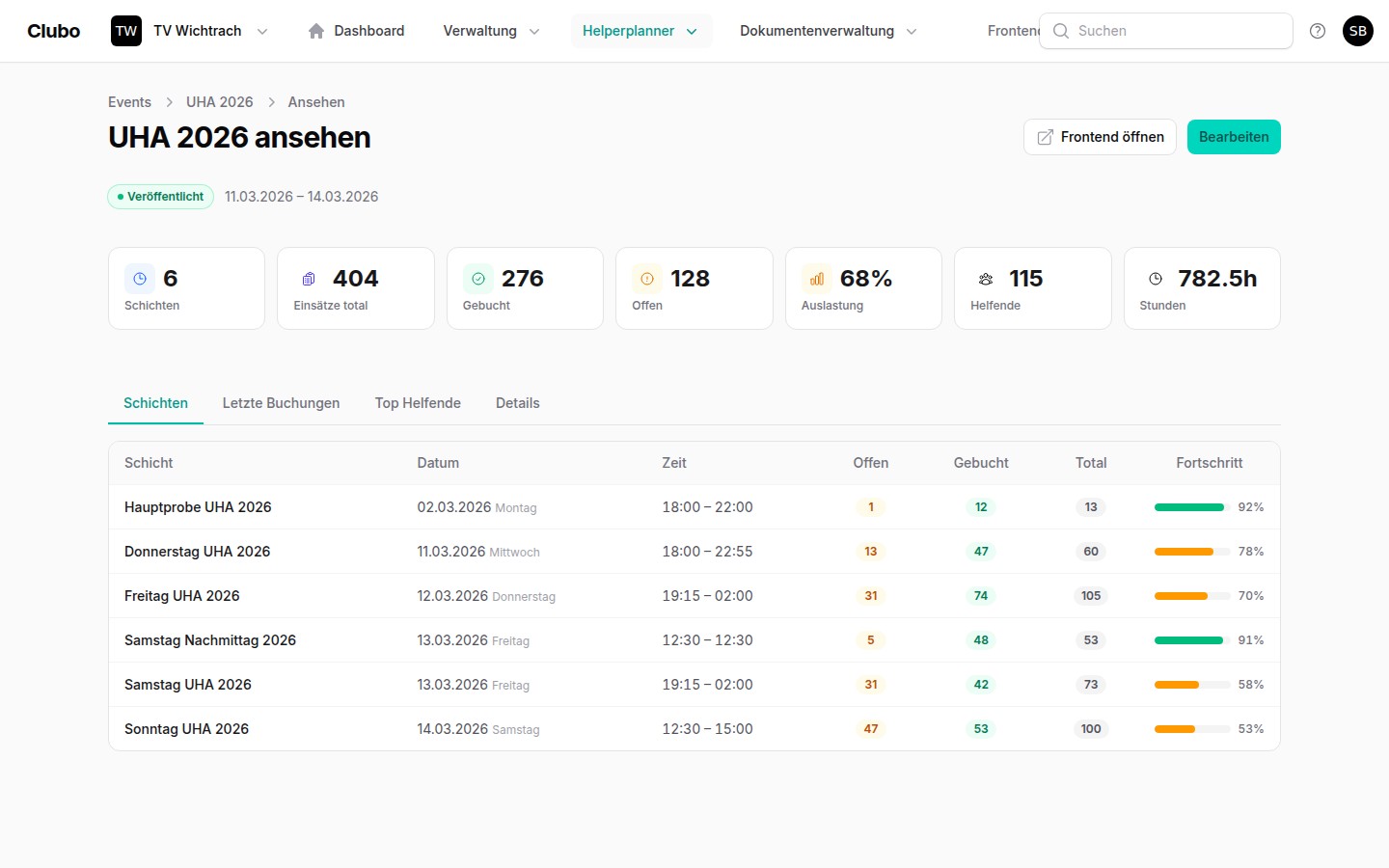
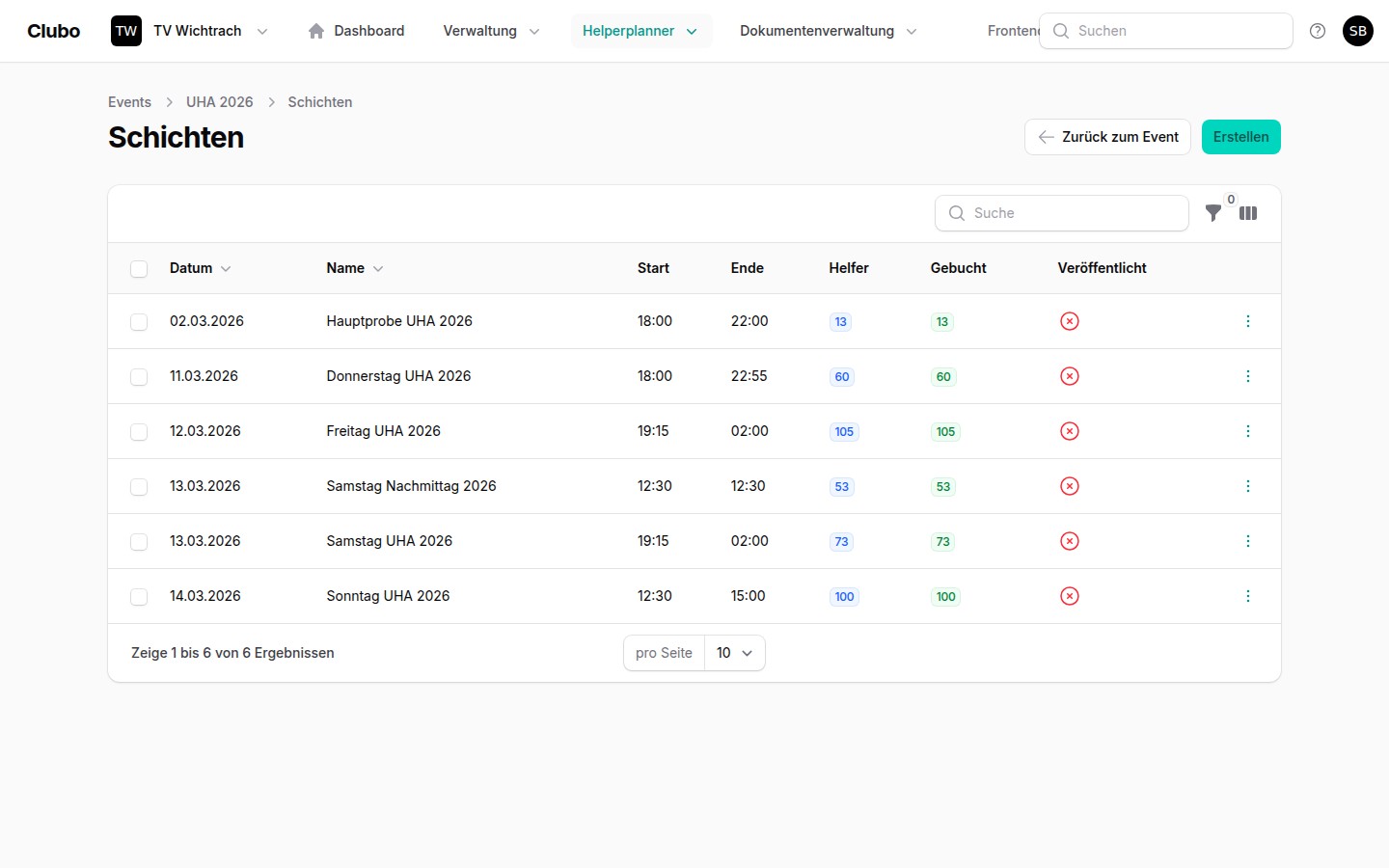
Planning shifts and assignments
For each task you define shifts with a date, start and end time, and the number of volunteers needed. Clubo automatically creates the bookable assignments from this. Notes on the shift — such as the meeting point — appear directly on the sign-up page.
- Set date, time and volunteer requirements per shift
- Add notes such as meeting point or equipment
- Keep track of staffing levels at any time with the progress indicator
Publishing and inviting volunteers
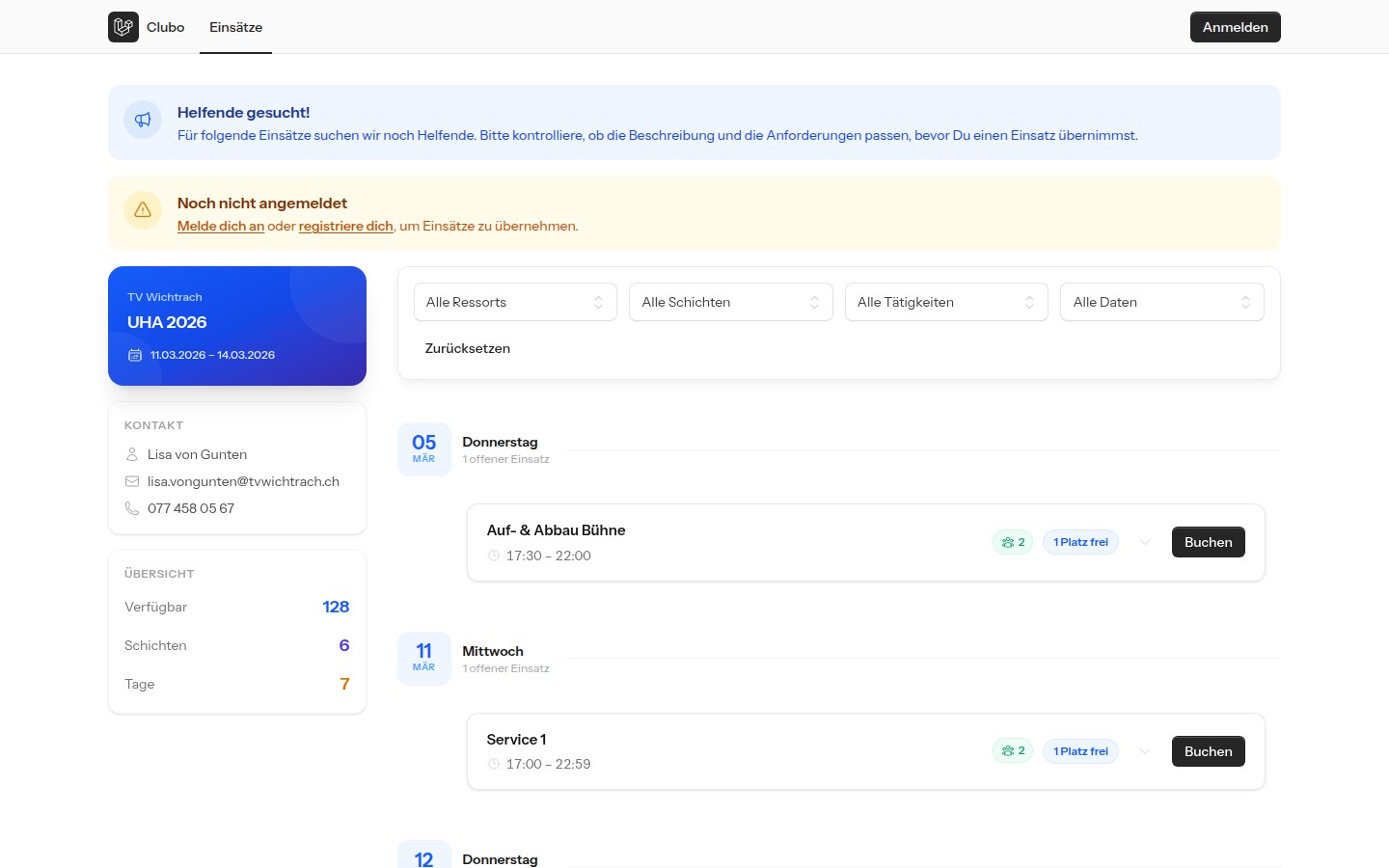
Once planning is complete, publish the event. Every event gets its own public sign-up page listing all open assignments. Share the link by email, WhatsApp, on your club website or via QR code — with no access barriers for your volunteers.
- Public sign-up page with its own web address
- Share the link anywhere: email, chat, website, notice board
- Live view of the assignments still available to volunteers
How your volunteers book
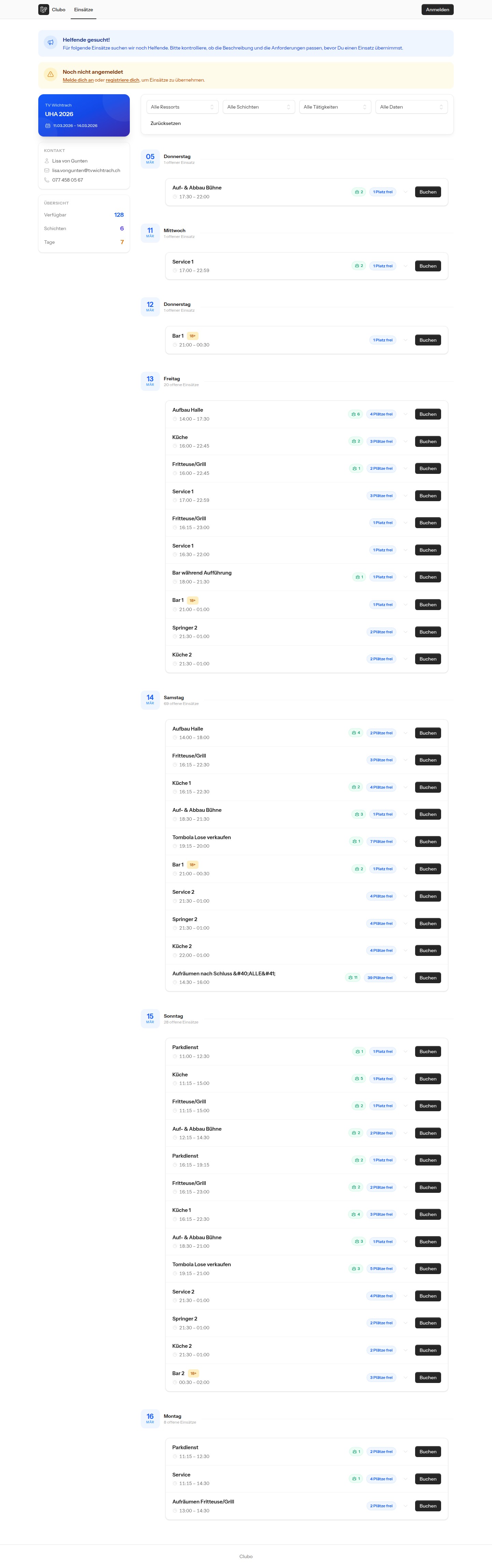
Volunteers register once with their email address and then book their preferred assignments — even several at once. Filters by division, task, date and shift make choosing easy. After booking, they automatically receive a confirmation with a calendar entry; if necessary, they can cancel via a personal link — no need to phone the board. Parents can also book assignments on behalf of their children, for example for school events.
- One-time registration, then booking in just a few clicks
- Automatic confirmation email with calendar entry
- Cancellation via a personal link — Clubo automatically prevents double bookings
Managing and analysing assignments
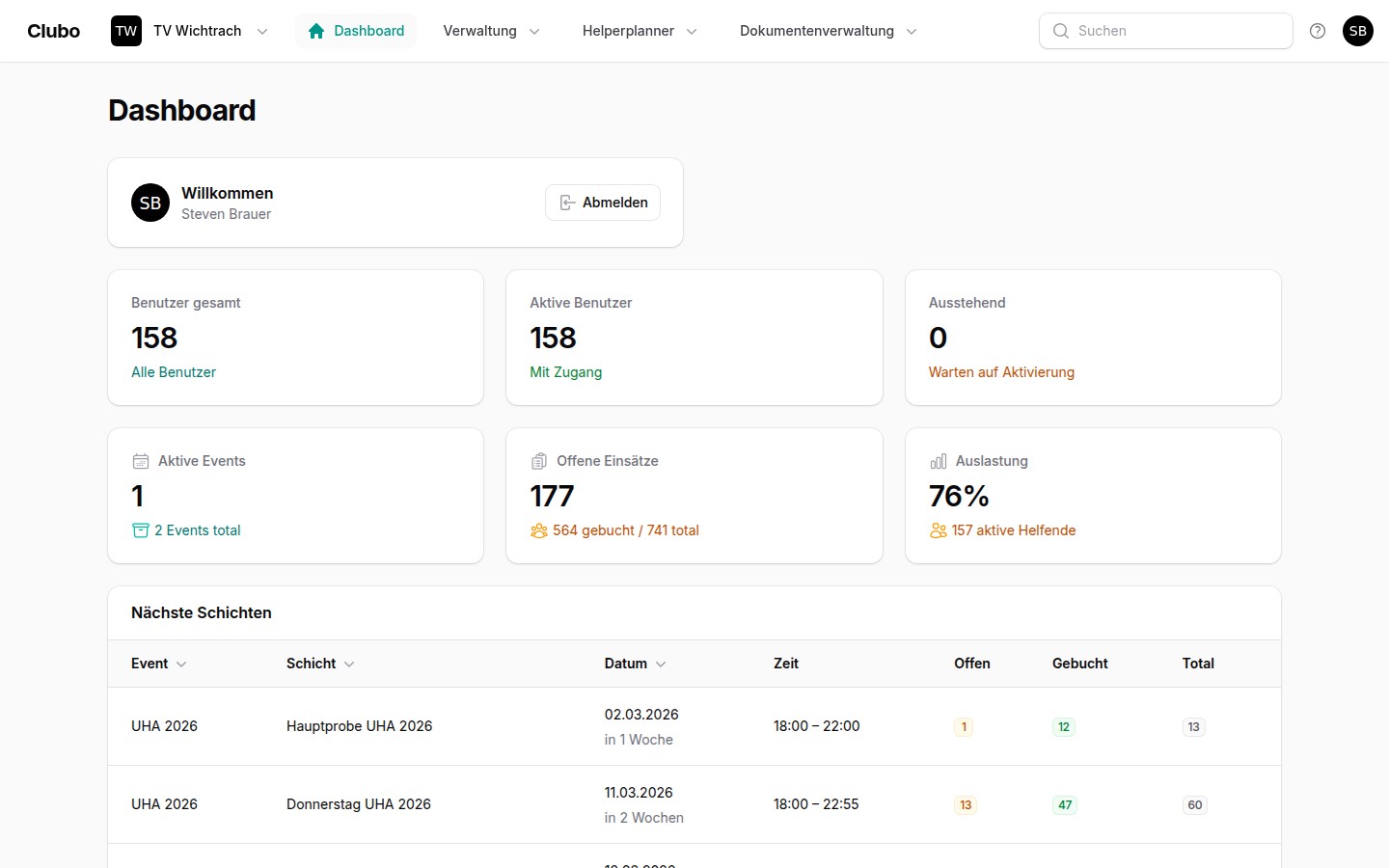
The assignment table keeps you in control: who is assigned where, which shifts are still understaffed? You can also assign volunteers manually — Clubo automatically warns you about scheduling conflicts. Automatic reminders before the assignment reduce no-shows, and with the Excel or PDF export you print assignment lists for the event.
- Assignment table with flexible filters, groupings and columns
- Manual assignment with automatic conflict checking
- Reminder emails, Excel/PDF export and reports

Tips for your next event
After the event is before the event: duplicate your event for the next edition — Clubo copies the complete structure and automatically shifts all dates to the new date. With milestones you thank loyal volunteers, and via the template export you can even share proven event structures with other clubs.
- Duplicate the event: same structure, new date, no leftovers
- Automatically reward loyal volunteers with milestones
- Export event templates and share them with other clubs
Ready for the most relaxed volunteer planning your club has ever had? Start for free — no credit card, no installation.
Questions? info@clubo.ch